Normalize Audio Loudness in Batch (-16 LUFS, One Click)
Episode 4 whispers, episode 5 shouts. LUFS vs peak, the -16 standard, what normalization can't fix — and the one-click batch that makes forty files sound like one show.
LUFS vs peak: the distinction that matters
Peak measures maximum sample level — a whisper and a shout can share one. It prevents clipping and nothing else. LUFS measures perceived loudness over time — how humans actually hear. Normalizing to -16 LUFS integrated (true peak capped at -1 dBTP) is the podcast standard Apple and Spotify built around; mono voice shows use -19. Platforms auto-normalize toward these targets regardless — matching them means your show sounds as intended instead of auto-corrected.
Audio Normalize Tool
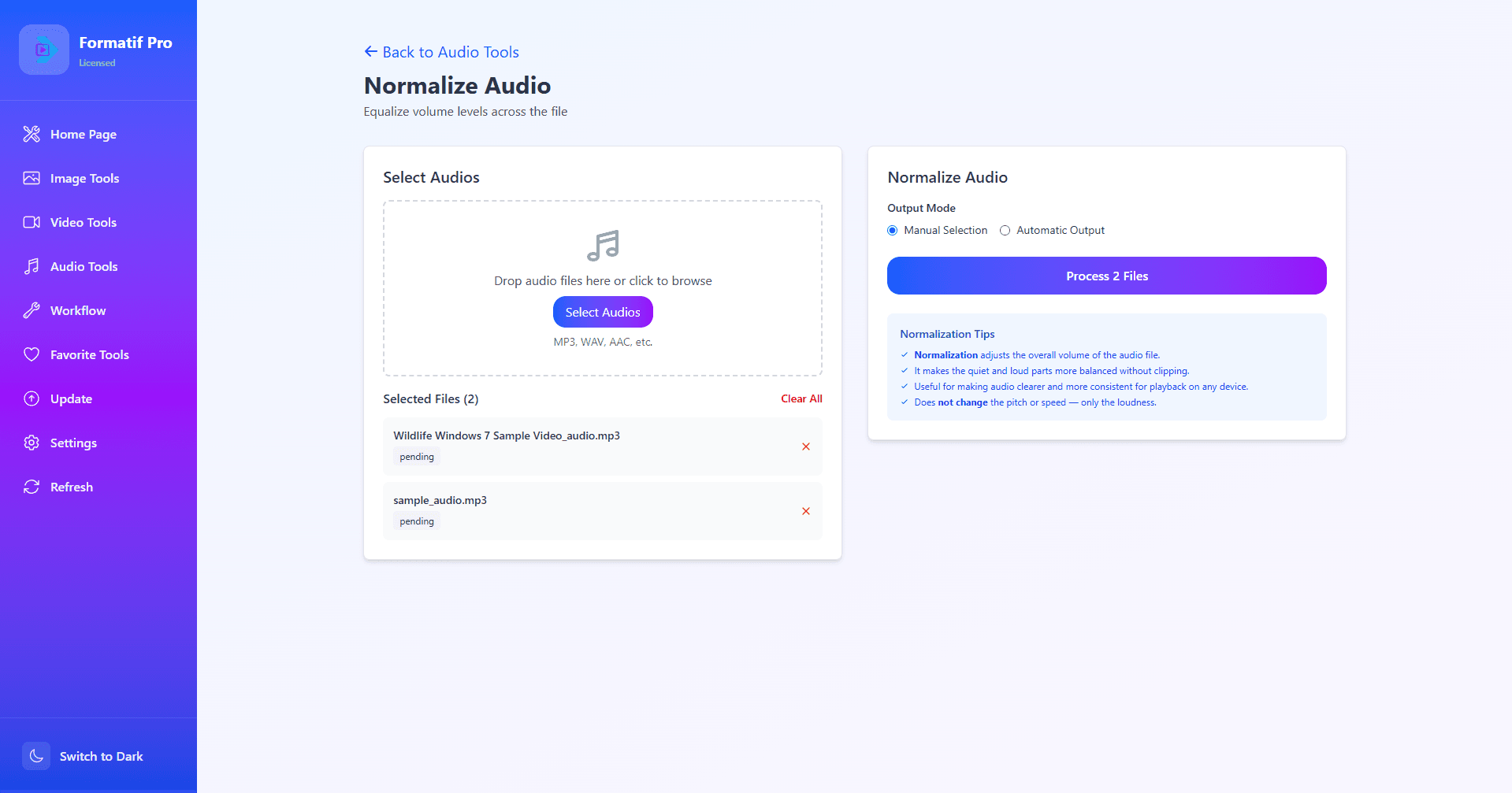
The Normalize tool: drop audio files in, click process — every file leaves at broadcast loudness with per-file status.
Quick Solution
Forty files, one target, one click.
Loudness normalization needs zero judgment per file — same -16 LUFS target, every time — which makes settings menus pure overhead. Formatif Pro ($8.95 one-time) does exactly one thing here: drop the folder, click process, every file leaves at broadcast loudness with per-file status. No knobs, nothing to misconfigure, nothing to learn.
What normalization can't do (honest limits)
Level problems only. Noise stays noisy, distortion stays distorted, clipped peaks stay clipped — those need EQ, repair, or re-recording before normalization. And order matters: normalize last among level steps, because anything tone-shaping afterward invalidates the target. Full chain in our podcast finishing guide.
Same target in FFmpeg (single pass)
ffmpeg -i in.wav -af loudnorm=I=-16:TP=-1.5:LRA=11 -c:a libmp3lame -b:a 128k out.mp3
Two-pass mode measures first for maximum accuracy on tricky dynamics — same filter, run twice. For folders, loop it or batch it; the target never changes, which is the whole point.
One more limit worth naming: sync. If audio drifts against picture over a long recording, that is a frame-rate clock problem, not a level problem — normalizing louder will never pull it back. Converting the video to constant frame rate is what fixes it; see our VFR to CFR conversion guide.
Loudness questions, answered
What does normalize audio mean?
Same perceived loudness (-16 LUFS) across files, true-peak safe. Volume knobs stay untouched between episodes.
Podcast LUFS target?
-16 stereo, -19 mono voice, true peak -1 dBTP. Platforms normalize here anyway — match it deliberately.
Peak vs LUFS?
Peak prevents clipping; LUFS matches perceived loudness. Consistency needs LUFS; peak is the safety ceiling.
Fix bad recordings?
Levels only — not noise, distortion, or clipping. Repair and EQ first; normalize last.
FFmpeg loudnorm command?
-af loudnorm=I=-16:TP=-1.5:LRA=11, single pass. Two-pass for tricky dynamics. Loop folders or batch.
Normalize whole folders?
The most batchable audio job: identical target, zero judgment. Drop folder, run, verify a sample.
Keep learning
Same loudness, every file, one click.
Formatif Pro ($8.95 one-time) and Formatif AI ($12.95 one-time) handle video, image, and audio conversion offline — with batch workflows, no file size limits, and a 3-day free trial.
FFmpeg loudnorm is free and exact — batching removes the repetition, not the knowledge.
Written by
Founder of Formatif, a local-first offline media processing suite for Windows and Linux. Hadi writes about video, image, and audio formats, compression, and privacy-first desktop workflows.